Posts

Showing posts with the label iphone

How To Take And Edit Photos With Your iPhone

Image
iPhone is popular among people majorly because of its wonderful camera. The photo filters present in the Photos application available in the iPhone shall help you improve and enhance photos. The inbuilt filters are styles. It shall be applied for making pictures more attractive. In this blog, we will discuss the ways to add photo filters and edit pictures on iPhone. Best ways to take and edit photos with your iPhone The method of using the photo filters present on the iPhone camera application Firstly, click on the Camera application for opening it. Then, press on the symbol of three interlocking circles. It shall be towards the above at the corner for receiving the present photo filters. Next, select the photo filter according to your likes. Lastly, after selecting the filter, capture the picture. Note:  You can see the picture in the iOS Photos application. The method of removing a filter from an iPhone picture Firstly, search the image from which you wish t...
How to connect your iPhone to a TV

Image
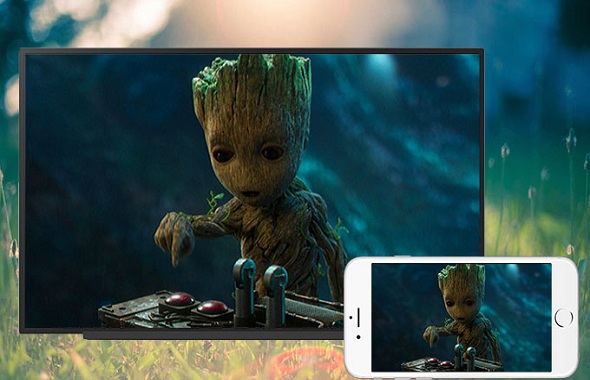
Watching and playing your favorite movie or game on a bigger screen is always a great experience. Just connect your iPhone with your TV and enjoy your favorite movie or game from that small iPhone screen to the large of your TV. Here are some simple and most common ways that you can use to connect your iPhone to a TV. •     How to connect an iPhone to the Apple TV via Airplay •     How to connect an iPhone to a TV with HDMI adapter and cable •     How to connect an iPhone to a TV with an Analog adapter and cable How to connect an iPhone to the Apple TV via Airplay If you're using this method to connect your iPhone to your Apple TV, then the iPhone you're using should be iPhone 4 or later and the Apple TV should be of the second generation or newer. 1.     Now, turn on your TV and TV unit. 2.     Take your iPhone, and launch the Control Center. 3.     Open 'AirPlay M...

How to Password Protect Notes on Your iPad or iPhone

Image
iPhone comes with a handy Notes app that is for jotting down the things that you need to keep in mind. Users can even preserve the device with the help of a passcode. There is no harm in providing an added security layer. The similar password is used for the notes that you have to protect in any of your Mac or iOS device. Users can select which individual notes they have to lock. Before starting Before you get started with your iOS device, assure that your gadget is updated. Users may secure the notes in iOS 9.3 or the later ones. If you want to access notes on Mac that are secured, then ensure one thing that you have been operating "OS X 10.11.4" or the following ones. Whenever the users refresh the iOS device from a previous iOS version, then the users will get to update the Notes app whenever they begin it after the update. They need to enable Notes syncing by going to the iCloud Settings on the iOS device. Assure that the user uses notes that have been lo...

How to Create and Delete Folders on iPhone

Image
Creating and grouping apps into the folders are the best way to reduce clutter on iPhone home screen. Create a separate folder for your games, music app, messaging apps and make them easily accessible. Here is how to create new folders and grouping apps into them: Steps to Create a new Folder on the iPhone Home screen Create a new folder on your iPhone’s Home screen to save space and categorize apps. 1.    Open your iPhone’s Home screen. 2.    Touch & hold on an app icon to enter into the edit mode. Icons start jiggling and remove button appear on it means you’re into the edit mode. 3.    Now, select the app you want into the folder. 4.    Hold and drag one app icon over the other app. At least two apps are required to create a new folder. 5.    Take the app icon to the edge of your iPhone screen to go to the next screen. 6.    When you’ll see folder interface optio...

Steps for Recording iPhone or iPad screen in iOS 11

Image
After the release of iOS 11, it became so easier to record the screen of your iPhone or iPad device  You can use this feature on iOS 11 or later iOS versions. If you don’t see the screen recording feature on your iOS device, then update your iPhone or iPad’s operating system. If you want to record the screen of your iPhone or iPad, then here is the full guide for screen recording. How to Enable Screen recording on your iOS 11 iPhone or iPad 1.    Launch ‘Settings’ of your iOS device. 2.    Tap on ‘Control Center’ into the settings menu. 3.    Scroll down to the Screen Recording. 4.    Tap on the ‘green colour (+) button’ at the left of Screen Recording to add it to the Control Center. Now, you’ll see Screen Recording under INCLUDE section of the Control Centre. To begin recording the screen of your iPhone or iPad iOS 11 1.   Slide upwards of the screen of your iOS device to go to Control ...

The Method Of Activating Or Deactivating 3D Touch On An iPhone

Image
Apple company was established on 1st April in the year 1976. This date has made a mark in history because of its significance. In some of the Apple products, the feature of 3D touch is not at all present, like in iPhone XR. Mostly the people who have used the 3D touch of Apple have made it a part of their daily routine. Since few don't like 3D Touch, so in such cases it can also be deactivated easily. 3D Touch was launched with the iPhone 6s. Generally, iPhone 6s or more latest ones, except the above mentioned iPhone XR, come with this function. There is a lot of chances that you have 3D Touch but have not used it yet. During releasing of the iPhone XR, Apple launched Haptic Touch too. The two actions-3D Touch and Haptic Touch- don't share same features. For instance, Haptic screen doesn't allow 'peek and pop' and Home screen related shortcuts even a bit. Note that if you have iPhone XR, then you can activate or deactivate Haptic Touch in the sa...