Posts

Showing posts with the label Windows

How to Turn On Remote Desktop in Windows and Mac?

Image
By default, Remote Desktop comes disabled in Windows versions. However, you can easily enable it on your computer. Using Remote Desktop, users can remotely control other PC in the same network. Let’s check out the process of turning on Remote Desktop. Using Windows 10 and 8 Here is the process of turning on the remote desktop on Windows 10 and 8. Follow the instructions carefully. • First of all, you can check if your Windows supports Remote Desktop. • After that, select the Start menu. • Then you can go to Settings. • Now, choose System in the Settings section. • Thereafter tap on Remote Desktop option on the left side. • Select “Enable Remote Desktop” and swipe the toggle to switch on position. • After that, the confirmation message will come on your screen. Tap confirm on it. • Thereafter select Advanced settings. • Now, turn on or turn off Network Level Authentication,” but it depends on your network connection. • Then choose “Select users that can re...
How to create a Bootable USB Drive in Windows and Mac

Image
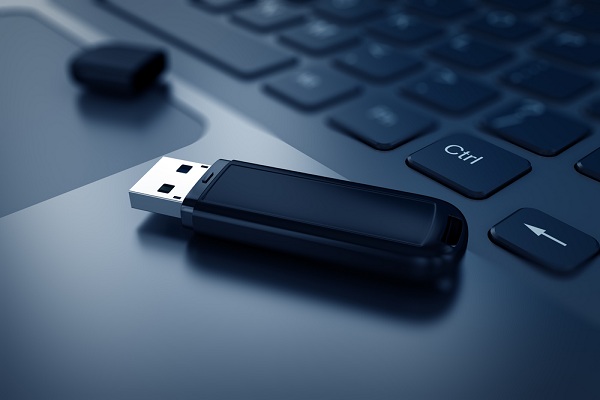
There are a number of uses of a bootable USB drive, especially for booting your computer and removing the virus. Also, if your computer is not starting properly, then your hard drive may be faulty or there can be a partition problem, etc. Here is how to create a bootable USB drive on your computer: On Windows Here is the process for creating a bootable drive in Windows. Follow the instructions carefully. • First, you can take your USB flash drive and insert it into your computer’s USB ports. • Then launch the Windows Start icon. • Then you can enter the command prompt in the search bar of your computer. • After that, right click on Command Prompt option. • Then select Run as administrator. This option you can see in the drop-down menu. • Select “Yes” and follow the instructions on the screen. • Then enter diskpart and after that press the enter button. • You can enter list disk and click enter into the Command Prompt. • Then you can identify your USB flash d...

How to Add Music Into Video on Windows PC or Mac

Image
You can add music into a video on Windows PC or Mac to make the video more interesting and cool. It is easy to place audio to a video clip by using correct video editing tools such as iMovie and Adobe Spark. Here you will learn how to add music into a video on Windows PC or Mac. Steps to Add Music Into Video by Using iMovie •    Go to the iMovie. It is located in the dock or by going to the apps folder. 1.    Choose the Go option by going to the menu list located in the upper left-hand side of the display. 2.    Choose the Applications option by going to the Go pull-down list. 3.    Choose iMovie by going to the Apps list. It will open the iMovie app. •    Choose the video you wish to edit. The projects are located on the left column of the display. On the window, you can choose the video which you want to edit by pressing on the preview screen. •    Tap on the Audio button. It ...

Find And Fix A Windows Memory Leak

Image
It is worth noting that there are different kinds of memory leaks in Windows. The most commonly found is standby memory. The standby memory is not only seen on Windows 7 but also on Windows 10 systems as well. After the standby memory takes away the available space, your device might stop working the way it should work. The method of searching memory leak with Windows’ Resource Monitor Firstly, put the combination of Windows Key+R, put ‘resmon’ and after that choose OK. Then, click on the Memory tab. After that, choose Commit for reordering the mentioned list. Next, check the Standby with the apps you generally use running. The method of checking a memory leak with Windows’ RaMMap Firstly, visit RaMMap’s Sysinternals page. After that, choose Download RaMMap. Then, visit the folder of Downloads. Next, copy the RaMMap archive to any of the places wherever you wish. After that, right-click the RaMMap app file. Choose Run as administrator. Then, click on Yes. Next,...

How To Take Screenshots On Windows and Mac Devices?

Image
Taking screenshots is a convenient way to keep a record of chats, statuses, and stories. In this article, we will discuss the ways to take screenshots on Windows and Mac devices. Take a screenshot on your device with a few clicks For Windows 7 and 8 users Mark that in older versions of Windows, you need to hit the Print Screen key. This results in copying the display into the Windows clipboard. Remember that it shall be pasted by pressing Ctrl+V wherever you like to do. For Windows 8.1 and 10 users MS have put some latest tools to its Windows 10 and 8.1 device users. The Print Screen option is used for inserting a picture into an editor. But by chance, if you find a picture file, then should press a combination of Windows+PrtScn. The photos shall go to the ‘Screenshots’ folder in the personal users’ image folder. If you want, then you may press a combination of Alt+PrtScn for copying the texts of the present window. However, this tool shall not be used for saving the ...

How To Download Kindle For Windows PC?

Image
It is not a must to have an Amazon Kindle for reading Kindle books. You can even read your favorite stories on the computer. For instance, its credit goes to the Kindle application for Windows. Want to know about the Kindle application for PC? Fortunately, the Kindle app for the computer has every feature that Amazon’s famous ebook reader has. You can put bookmarks, highlight content and also write notes. According to your preference, you can even manage the font. The best part is that the Kindle for the computer can be used with mostly every version of Windows. The method of making an Amazon Account It is compulsory to make one Amazon account for buying and reading Kindle books. Firstly, go to amazon.com. Then, put your mouse cursor on Accounts and Lists. It will be placed towards upwards at the right side of the display. Note that you don’t need to click on that option. Press on ‘Start Here from the drop-down menu.’ It is immediately under the log in. After that, f...

How to Print a PDF in Windows, Linux, and Mac

Image
Is there a PDF file that you want to print? Well, you can print PDFs quickly and conveniently. Read on to find out more. Take out the print of a PDF super quick! Use the inbuilt PDF printer in Windows Do follow the given below instructions to get the ‘print to PDF’ printer shown in Windows 10. Firstly, go to the Power User Menu by pressing the combination of Windows+X. Then, select Settings. After that, press Devices. Next, click on Printers and scanners. Click on the option ‘Add a printer or scanner’. Press on the option that says ‘printer that I want is not given’. Tap on ‘Add a local printer or network printer’. Then, select FILE: (Print to File). It will be placed below a Choose a printer port option. Select Microsoft below the Manufacturer part. Search for ‘Microsoft Print To PDF’ below Printers. Check the ‘Add Printer wizard’ Lastly, ‘permit’ if any default option for putting the PDF printer to Windows 10 is present. Note:  According to your like...

How to View and Manage Clipboard History On Windows and Mac

Image
Clipboard in the Windows and Mac systems hold just one item at a time that can be limiting, especially when you want to copy the item from several files. Wouldn’t it be cozy to see the history of your clipboard and see the previously copied items. Thankfully some free apps are there for the Windows and Mac that enable you to manage clipboard history in your system. It permits you to sync clipboard between different systems.   Clipboard Manager- Windows Clipboard Manager is a great looking free program that keeps images, texts, and files. You are able to send any entries, clips into other applications. You are allowed to edit the photos in Clipboard Manager. It comes along with the primary editor of the image. It comes up with three plugins to handle the files, text, and bitmaps. You may send the clip to plugins to ensure it is dealt with well when you paste it. Launch Clipboard Manager as a portable program. Click right on the clip to access the menu where you m...